Grids
Introduction
The Grid section in Drafft provides a powerful and flexible way to organize and manage your data using a spreadsheet-like interface. Whether you're building a table for game data, managing item inventories, or creating a complex database, Drafft’s Grids give you the tools to format and present your information clearly and efficiently.
With support for multiple column types and the ability to apply custom formatting, Drafft makes it easy to control how data is displayed. From numbers and currencies to dates and colors, you can tailor each cell to meet your specific needs. The grids are built on top of the popular Jspreadsheet library, offering a robust set of features and customization options.
In this guide, you’ll learn how to create tables, format cells, and leverage the different column types to build more dynamic and functional grids for your projects.
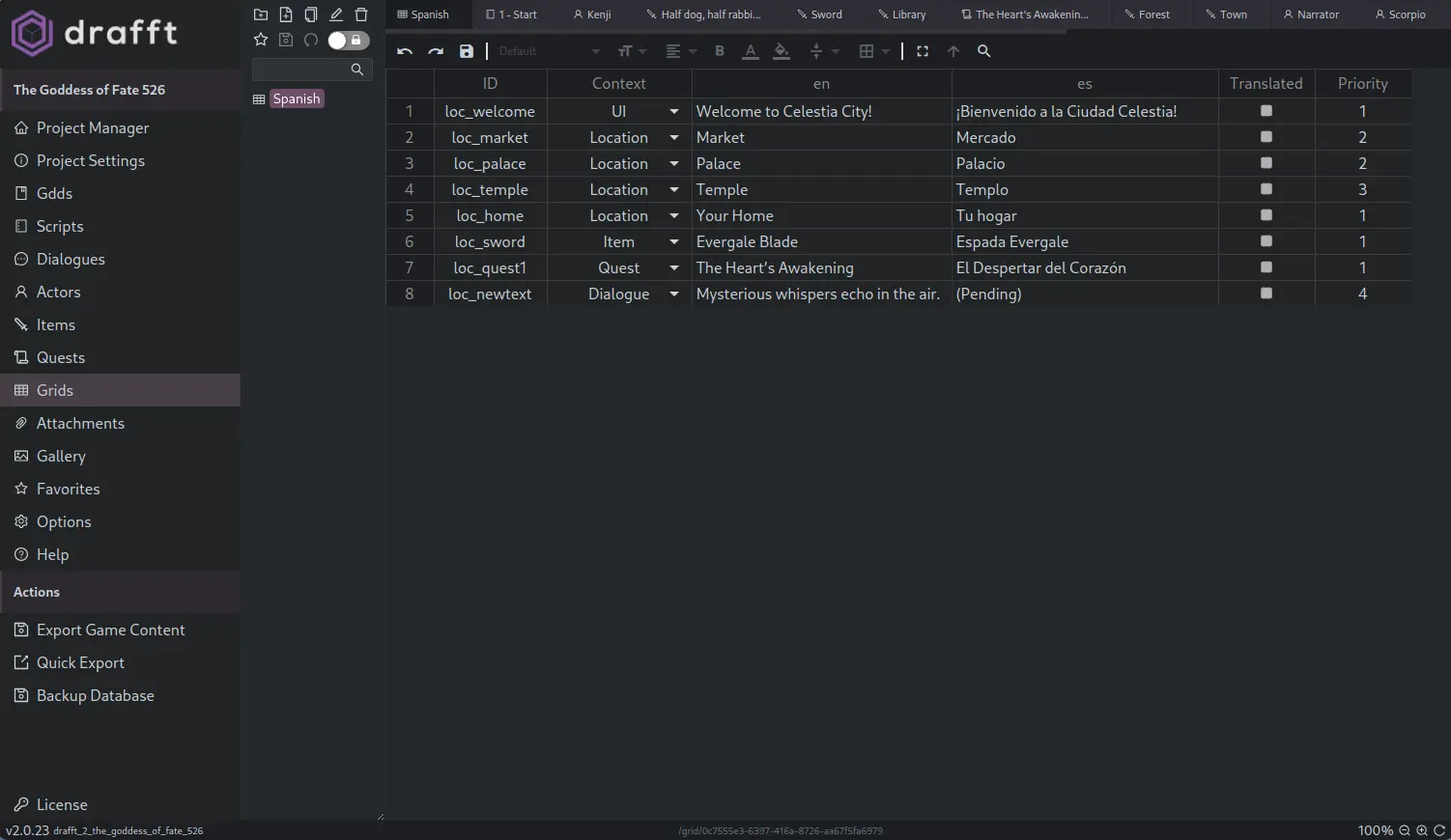
Column Types
The available column types are:
- text
- numeric
- hidden
- dropdown
- checkbox
- radio
- calendar
- image
- color
- html
- document
Document Column Type
The Document column type allows you to link to other documents in your project directly from grid cells. This creates powerful relational connections between your data and other documents.
How It Works
- Set a column type to "Document" in the column editor
- Click on any cell in that column to open a document picker
- Select any document from your project
- The cell will display the document name as a clickable link
- Click the link to navigate directly to that document
Use Cases
- Item Management: Link items to their related quests or locations
- Character References: Connect characters to their main dialogue trees or scripts
- Quest Dependencies: Link quests to prerequisite quests or reward items
- Location Databases: Reference description documents or related scenes
- Asset Organization: Build reference tables connecting different document types
Example
Create an Items grid with a "Related Quest" column of type "Document". Each item can then link to the quest document where it's obtained or used, making it easy to navigate between related content.
Cell Formatting
Drafft's grids offers flexible cell formatting features similar to Excel and Google Sheets, with customizable options for better data presentation. You can format numbers, currencies, dates, and more to suit specific application requirements, enabling enhanced control over how data is displayed and integrated.
Grids are built on top of Jspreadsheet, a powerful JavaScript spreadsheet library that offers a wide range of features and customization options. For more information, please refer to the Jspreadsheet documentation.
Overview
Column Level Settings
The following properties are applied uniformly to all cells in a column.
| Attribute | Description |
|---|---|
| mask?: object | This property force the mask during the edition. |
| format?: object | This property will mask the content of a cell after the edition. |
| locale? object | This property apply the JavaScript Intl.FormatNumber to the cells. |
Documentation
Mask and Format Settings
In Jspreadsheet CE, the mask property enforces a specific input pattern during cell editing using spreadsheet-like tokens. The format property applies formatting rules to cell content after editing. Below are examples of tokens that can be used:
| Valid examples |
|---|
| 0 |
| 0.00 |
| 0% |
| 0.00% |
| #,##0 |
| #,##0.00 |
| #,##0 |
| d-mmm-yy |
| d-mmm |
| dd/mm/yyyy |
| mmm-yy |
| h:mm AM/PM |
| h:mm:ss AM/PM |
| h:mm |
| h:mm:ss |
| m/d/yy h:mm |
| mm:ss |
| [h]:mm:ss |
Locale
Currency Formatting
To use the currency style in Jspreadsheet, specify the currency property. Optionally, you can use the currencyDisplay and currencySign properties to control the display format of the currency unit.
Examples
Data Grid with Different Currencies
The example below demonstrates number formatting using Intl.NumberFormat or mask.
See more examples of the spreadsheet format on jsfiddle
[
  {
    "title": "Currency INR",
    "type": "number",
    "locale": "en-IN",
    "options": {
      "style": "currency",
      "currency": "INR"
    }
  },
  {
    "title": "Currency BRL",
    "type": "number",
    "locale": "pt-BR",
    "options": {
      "style": "currency",
      "currency": "BRL"
    }
  },
  {
    "title": "Percent US",
    "type": "number",
    "mask": "0.00%"
  },
  {
    "title": "Units Liter US",
    "type": "number",
    "locale": "en-US",
    "options": {
      "style": "unit",
      "unit": "liter",
      "unitDisplay": "long"
    }
  },
  {
    "type": "number",
    "format": "#.##0,00"
  },
  {
    "type": "number",
    "mask": "#,##0"
  }
]
Export Schema
See Drafft Output Schema for the JSON export schema.